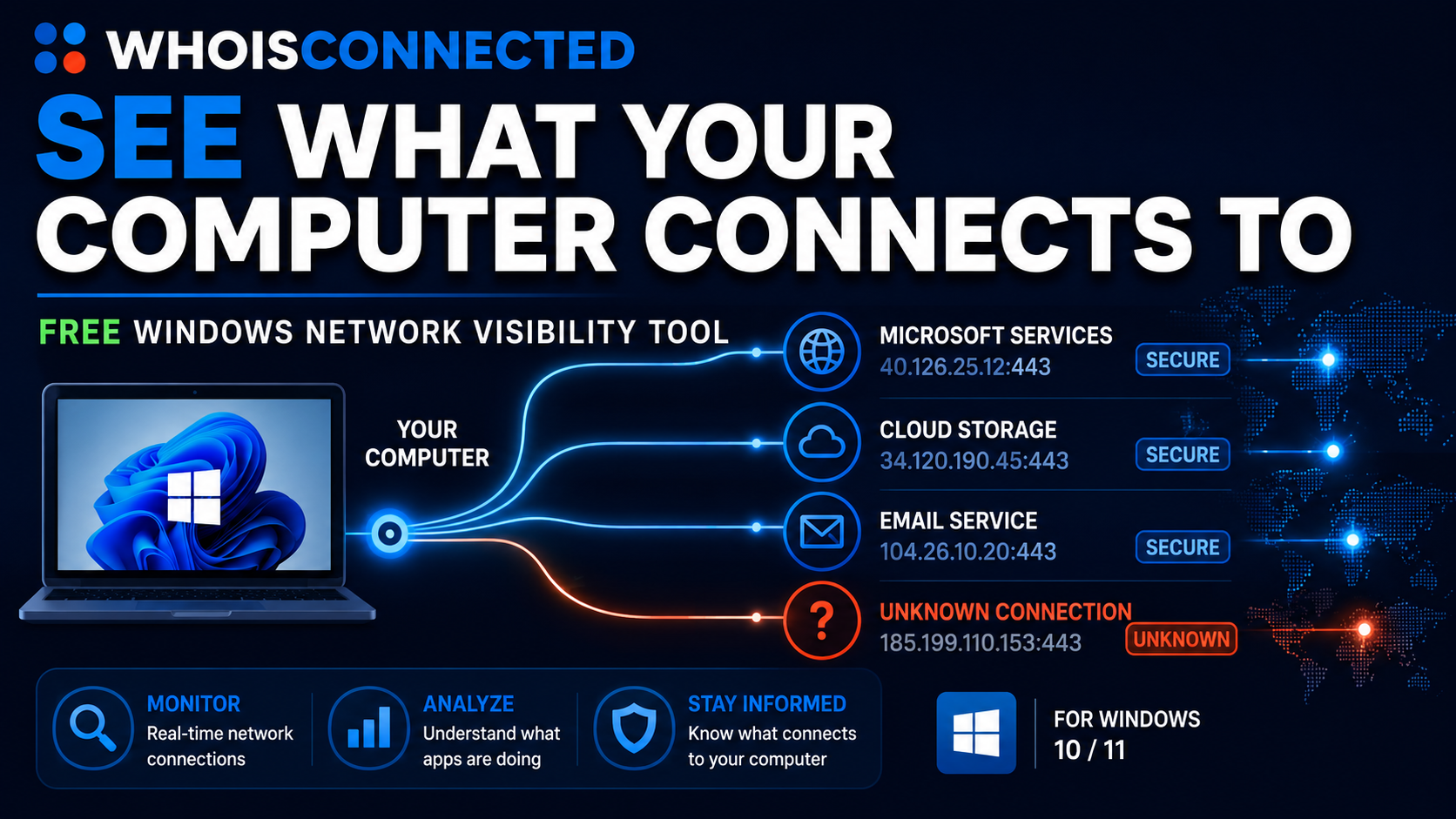
See WhoIsConnected in action
Watch a quick introduction to WhoIsConnected and see how it reveals the network connections created by applications on your Windows PC.
Applications on a modern PC can communicate with many Internet networks in the background, often without any visible indication that this is happening. Some connections may support functions you use. Others may be unnecessary, unexpected, or simply communications you do not want.
Do you know which applications are communicating, where they are connecting, and how that activity changes over time?
If an office application, development tool, utility, or background process repeatedly establishes network connections while you use your computer, that activity deserves your attention. A connection is not automatically unsafe simply because it is unexpected, but you should be able to see it, investigate it, and decide whether you want to allow it.
WhoIsConnected gives that decision back to you. It shows which applications are communicating, identifies the networks they connect to, helps you investigate them, and provides controls for stopping or blocking unwanted communication.
Your computer belongs to you. You should be able to see what it communicates with and decide which network communications you want to allow.
The Free Edition provides network visibility and lets you terminate a selected application. Premium adds application/network details, AI-assisted analysis, and network blocking and unblocking controls.
Watch a quick introduction to WhoIsConnected and see how it reveals the network connections created by applications on your Windows PC.
See active local applications and network activity in real time.
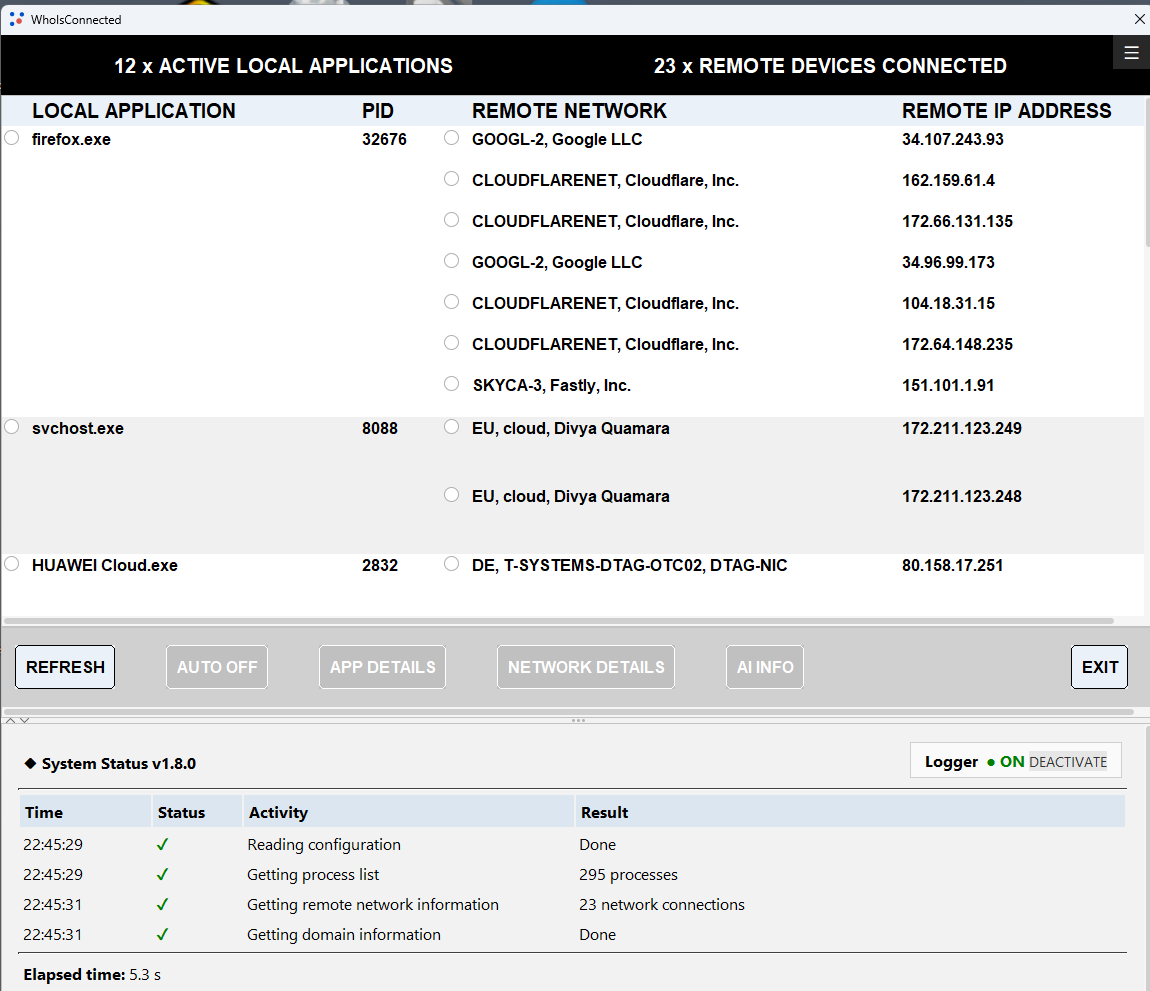
Deep dive into application and network information.
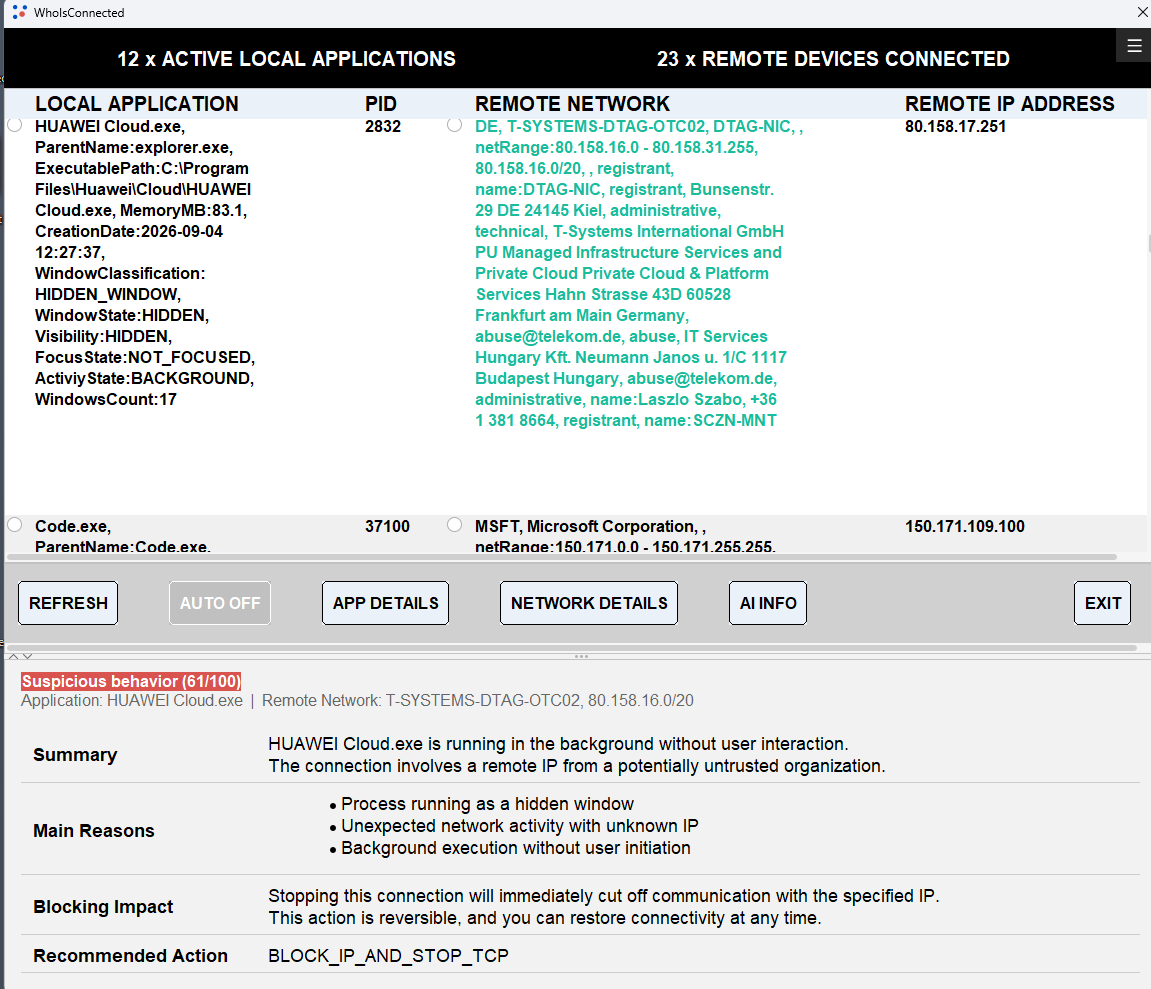
Stop selected connections or block an IP address or network range.
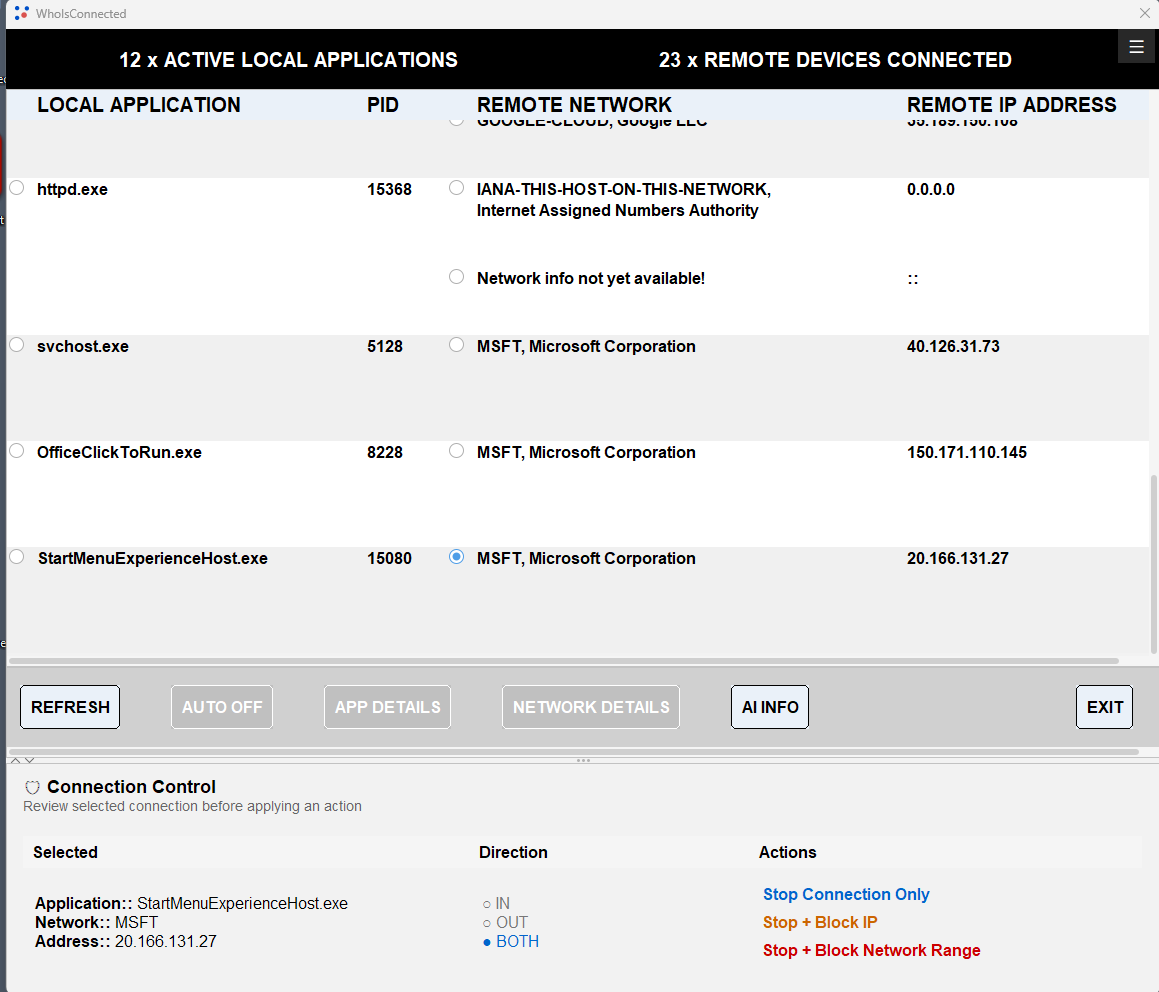
Block or unblock network access for selected applications or all currently listed applications.
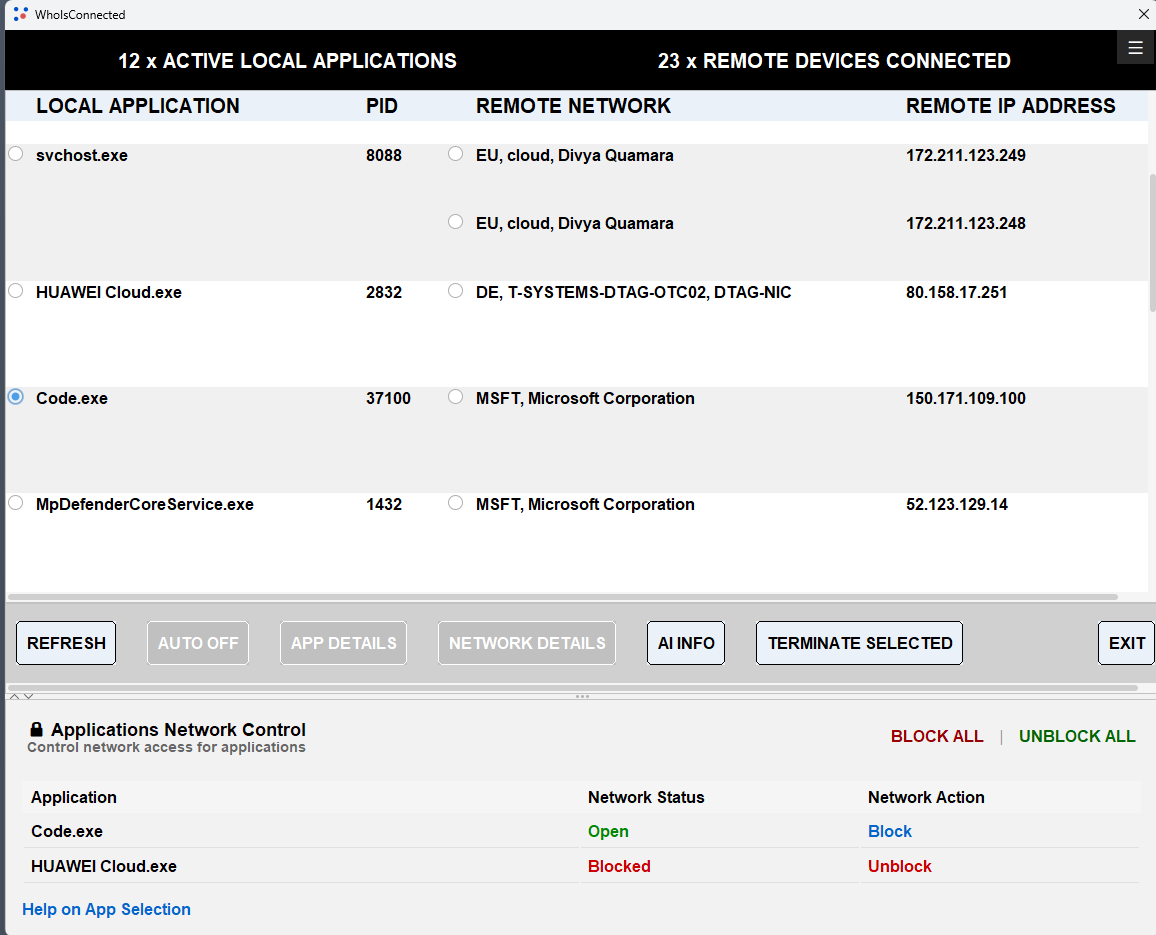
Some network connections exist only for a short time. An application may close one connection and establish another, sometimes using a different IP address in the same network range or a different network altogether. By the time you look at the active connection list, the earlier connection may already have disappeared.
A connection disappearing does not necessarily mean the application's network activity has stopped. WhoIsConnected Logger records newly detected and closed connections whenever WhoIsConnected collects new connection data through a manual or automatic refresh.
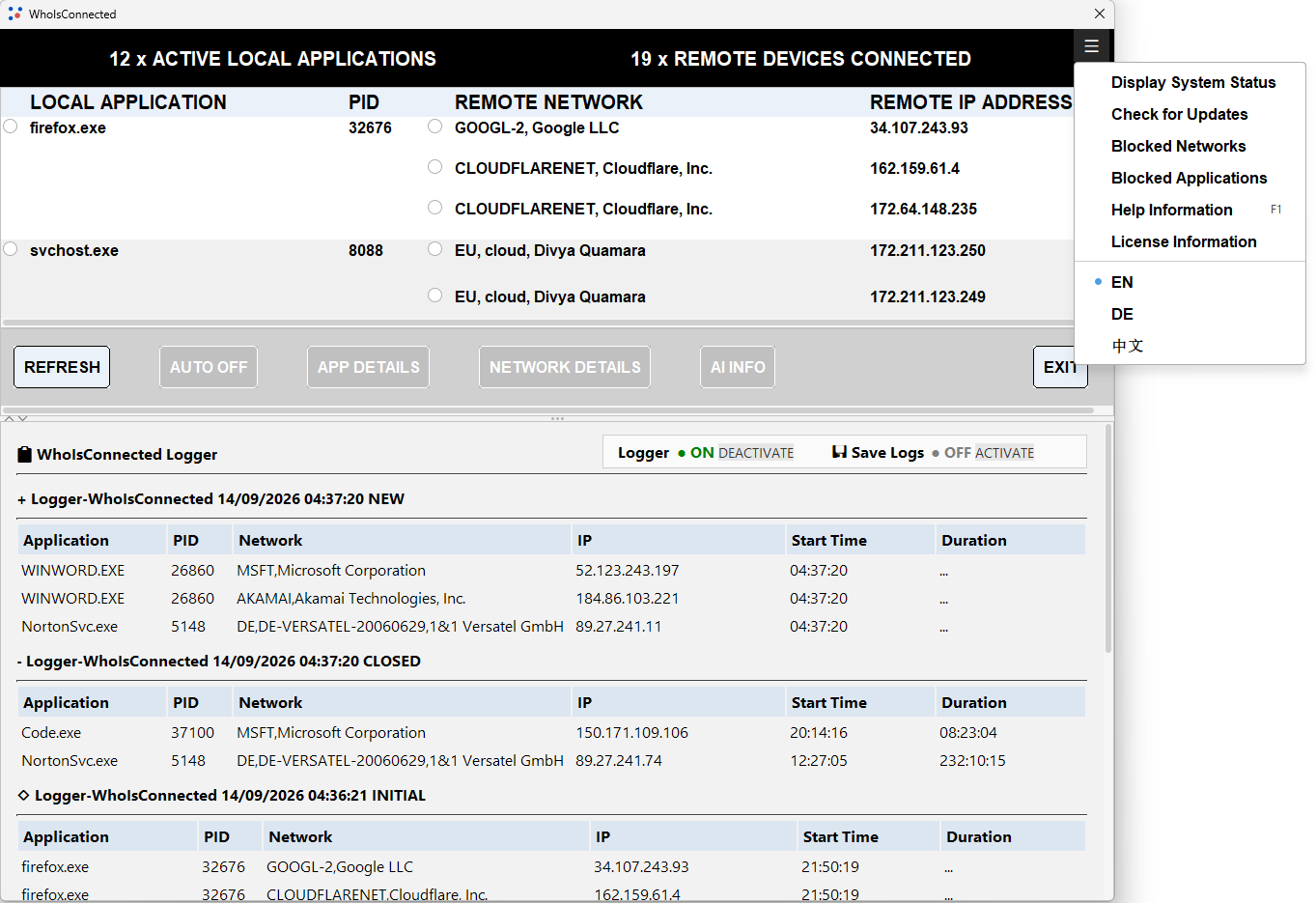
Refresh matters: Logger is not a continuous packet-capture system. A connection that starts and closes entirely between two refreshes may not be discovered. Automatic refresh is available at 2-minute or 10-minute intervals, and you can press REFRESH manually at any time — including more frequently while investigating an application.
Logger is also useful after blocking applications or networks. Continue using your computer normally and observe how the detected network activity changes. If a function you need stops working, you can reconsider and unblock the relevant application or network.
Premium AI Analysis evaluates selected application and network pairs and presents a Behavior Score from 0 to 100. The color-coded scale helps you quickly recognize increasingly unusual behavior and decide what deserves further investigation.
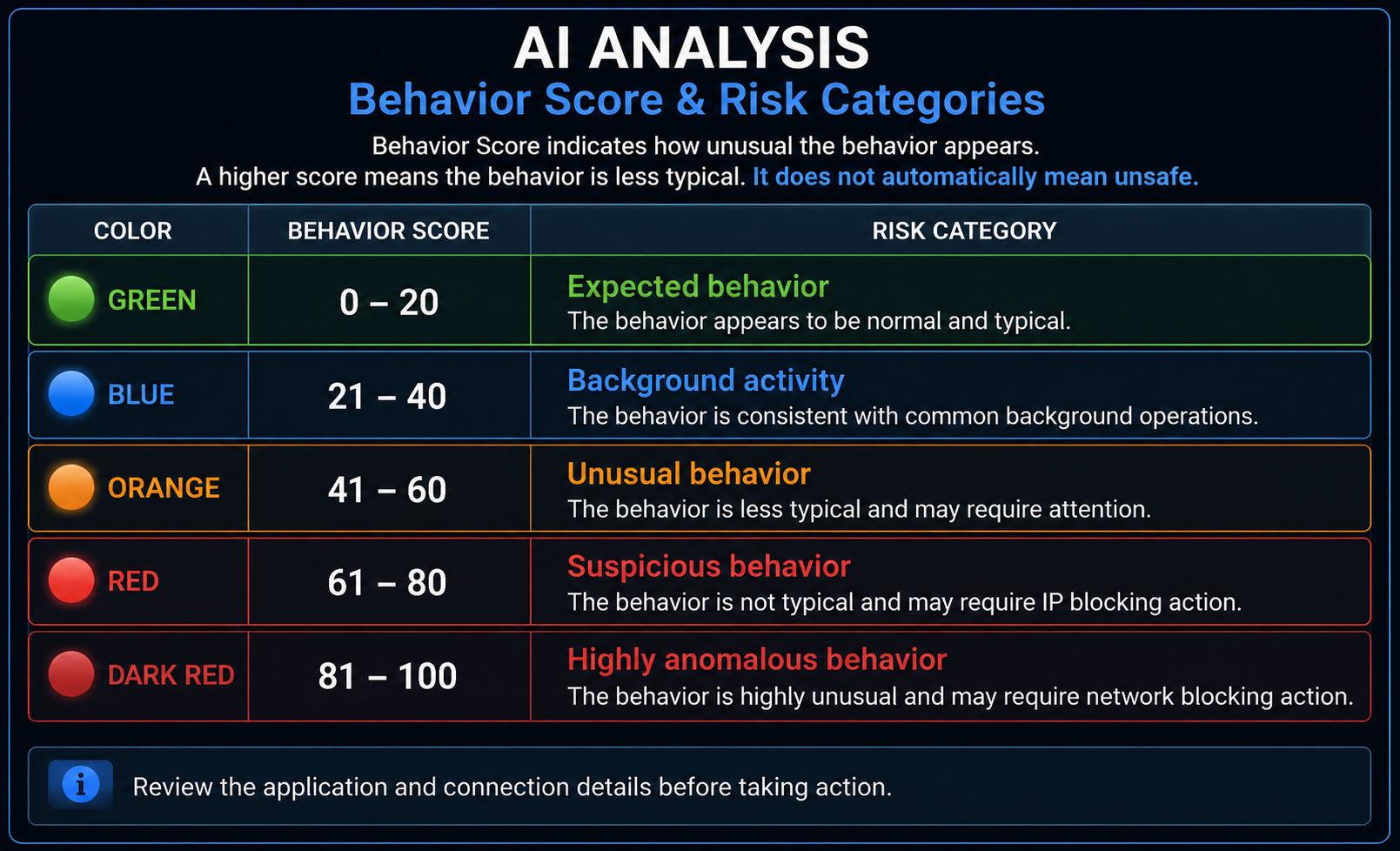
A higher score means the analyzed behavior appears less typical. It does not by itself prove that an application or connection is unsafe. Review the application and network information before deciding whether to take network-control action.
Applications can use multiple IP addresses and network ranges. Blocking only one connection may not prevent an application from establishing another connection elsewhere. Application-level blocking in Premium makes broader control easier by blocking the application's currently discovered networks and, during the current WhoIsConnected session, newly discovered networks for that blocked application.
Reducing unnecessary network communication can reduce exposure, improve privacy, and give you greater control over your computer. The objective is not to eliminate all network connections, but to allow the communications you need and restrict those you do not need or do not trust.
MOBILOTECH GmbH
Bachstr. 17, Ehringshausen
Germany
Email: support@whoisconnected.com