Windows network visibility guide
How to See Which Programs Are Connecting to the Internet on Windows
Your Windows PC can communicate with remote systems while you are browsing, writing documents, developing software or simply leaving applications running in the background. How can you find out which program is connecting, and where?
Start with the tools built into Windows
Windows includes several ways to inspect network activity. Open Resource Monitor (search for “Resource Monitor” in the Start menu), select the Network tab, and look at TCP Connections. This view can show processes and their remote addresses.
For a command-line view, open Command Prompt and run netstat -ano. It lists connection endpoints and process IDs (PIDs). You can use Task Manager to associate a PID with a running process. These tools are useful, but interpreting many addresses and changing connections can take time.
See applications and their remote connections together
WhoIsConnected groups detected network connections by the Windows applications that created them. The main view shows application names, PIDs, remote network information and IP addresses, including IPv4 and IPv6 where present.
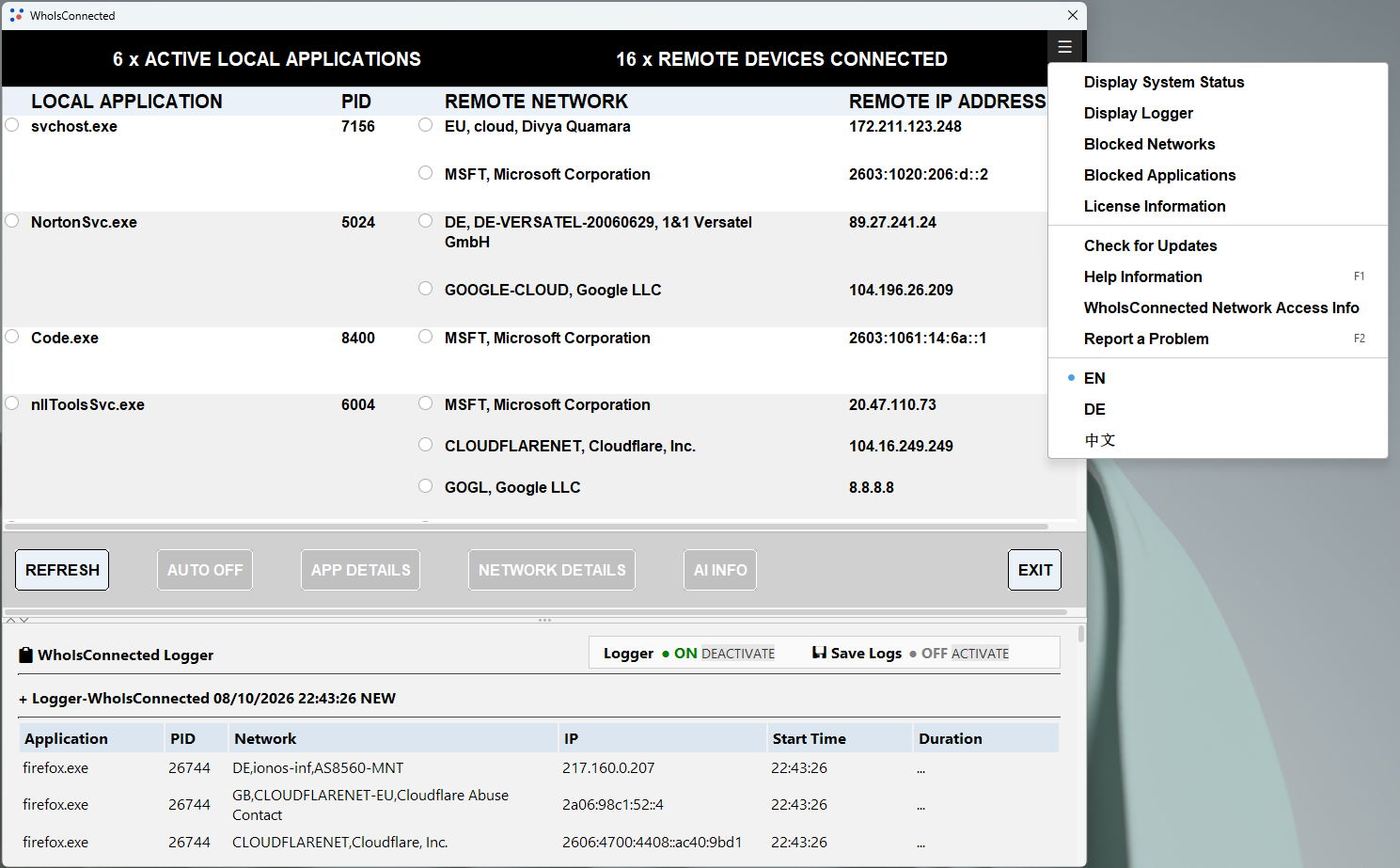
For example, the screenshot shows connections associated with Windows services, a security application and a development tool. The presence of a connection does not mean that an application is malicious or that the communication is unnecessary.
Investigate remote IP addresses and networks
An unfamiliar IP address does not automatically indicate suspicious activity. For an individual IPv4 or IPv6 address, you can use a public WHOIS lookup service such as who.is to learn more about the network or organization associated with it.
WhoIsConnected Premium provides detailed network information within the application for IP addresses shown in its connection table, making it easier to investigate multiple connections without looking up each address separately.
WHOIS records can help identify a network operator, but they do not necessarily reveal the service involved, why an application connected, or whether a connection is safe.
Investigate before deciding what to allow
- Observe: Identify the application or process that has an unexpected connection.
- Investigate: Review the remote IP address and available network or application details.
- Decide: Determine whether that communication fits what you want the application to do.
- Observe again: Refresh the view and check whether the network activity changes.
What about connections that appear and disappear?
WhoIsConnected Logger records newly detected and closed connections when connection data is refreshed. It can help you compare observations over time instead of relying only on a single snapshot.
The Logger is not continuous packet capture. Connections that start and end entirely between refreshes may not be observed.
Free visibility and optional Premium controls
The Free Edition lets you view detected application network activity and terminate a selected application. Premium adds deeper application and network information, AI-assisted analysis and network blocking/unblocking controls. Blocking a particular IP address is not necessarily equivalent to preventing all future communications by an application.
See what your Windows applications connect to
Try WhoIsConnected on Windows 10 or Windows 11. No registration required.
Download WhoIsConnectedFree download · Windows 10/11 · Version 1.9.2
Further reading
The technical paper Who Decides When an Application Needs the Internet? explores network visibility, user intent and informed control. Read the paper on Zenodo.