Important to Understand
An application can communicate with many different IP addresses and network ranges. Blocking one IP address or one network range does not mean that the application itself has been blocked.
If the application later connects to an IP address in another network range, that new connection is not covered by the network range you previously blocked. This does not mean that blocking has failed — it is a different network.
Why Block Only One IP Address or Network Range?
You may want to prevent an application from communicating with a particular IP address or network range while allowing its other network connections to continue.
WhoIsConnected can show where an application connects, but it cannot necessarily determine why the application uses each connection.
If you do not understand why an application needs a particular network connection, you can block that IP address or network range and observe what happens. If a function you need stops working, you can unblock it again. This can help you learn which network communications are actually required for the way you use the application.
Network Blocking vs. Application Blocking
Network blocking controls a specific IP address or network range used by an application. It does not automatically cover other network ranges that the application may use later.
Application blocking is different. Use the application controls when your intention is to control the network activity of the application itself. During the current WhoIsConnected session, newly discovered networks of a blocked application are also blocked when they are detected during refresh.
See App Selection & Control for Block, Unblock, Block All and Unblock All.
Selecting a Network Connection of an Application
Click the selection button (○) beside a remote network entry of an application. Only one network connection of an application can be selected at a time. Selecting another network connection moves the selection to that connection.
This single-selection model helps ensure that a connection-control action is applied to the intended application and remote connection.
Connection Control Panel
After selecting a network connection of an application, the Connection Control panel displays the selected Application, Network, and remote Address. Review these values before applying an action.
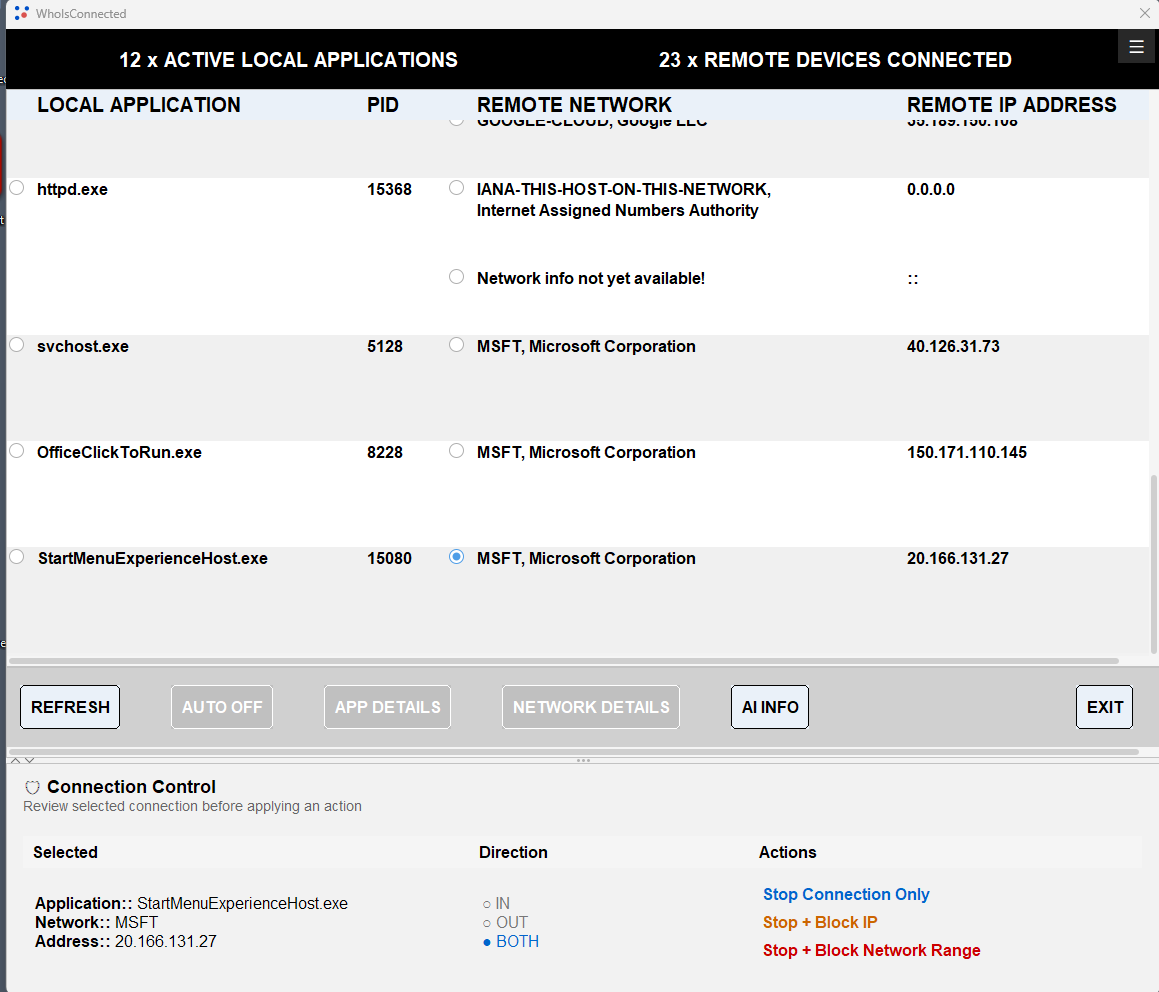
Direction Selection
Select the traffic direction before applying a blocking action.
| OUT | Applies the blocking action to outgoing traffic from your PC to the selected IP address or network range. |
|---|---|
| IN | Applies the blocking action to incoming traffic from the selected IP address or network range to your PC. |
| BOTH | Applies the blocking action in both directions. |
Available Connection Actions (Premium)
Stop Connection Only
Attempts to terminate the selected connection. The application may establish a new connection later if it still requires network access.
Stop + Block IP
Terminates the selected connection and blocks further communication with the selected remote IP address in the chosen direction.
Stop + Block Network Range
Terminates the selected connection and blocks communication with the network range containing that remote IP address in the chosen direction. Other network ranges used by the application remain separate.
Administrator Permission Required for Blocking
The first time you use a Block or Unblock operation during a WhoIsConnected session, Windows asks for administrator permission. Select Yes to allow HelperWhoIsConnected to start with administrator rights and perform the requested network-control operation.
You normally need to approve this only once while WhoIsConnected is running. If permission is not granted, blocking and unblocking cannot be performed.
WhoIsConnected itself continues to run with normal user rights. Administrator rights are requested for HelperWhoIsConnected only when required for blocking or unblocking operations.
⚠ Caution
Blocking an IP address or network range can affect functions of the application that depend on that communication. If a function you need stops working, you can unblock the network again.