Overview
WhoIsConnected is installed using the Windows installer.
The installer prepares everything required to run WhoIsConnected and automatically configures the application for future updates.
1. Download the Installer
From the main application page, click:
Download WhoIsConnected
The downloaded file is:
InstallerWhoIsConnected.exe
Double-click the installer to begin the installation process.
Windows Security Warning
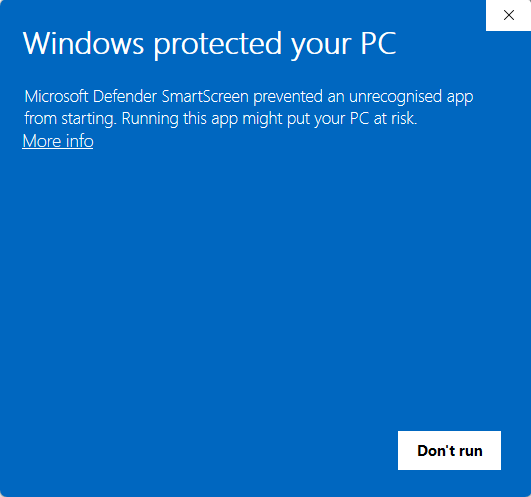
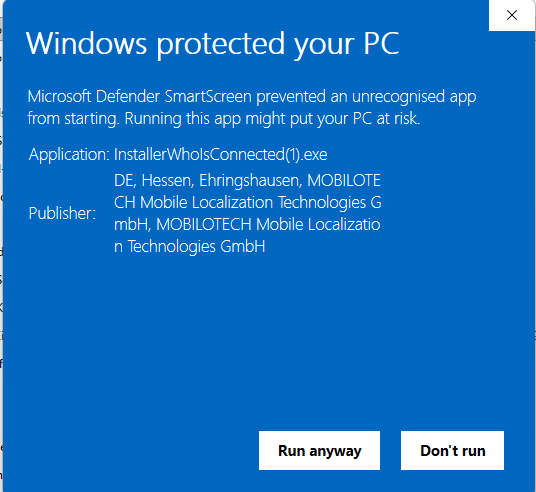
When starting the installer for the first time, Windows may display the following message:
To continue the installation:
- Click More info.
- Windows will display additional information about the application.
- Click Run anyway to start the installer.
The WhoIsConnected installer can then continue normally.
2. Choose the Installation Folder
The installer first asks where WhoIsConnected should be installed.
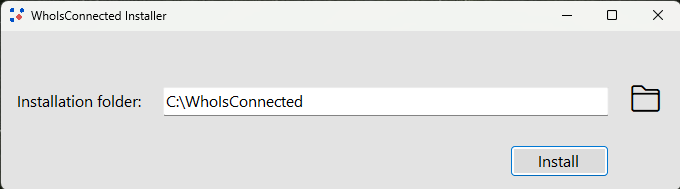
The recommended installation folder is:
C:\WhoIsConnected\
You may choose another location if required.
Installing into protected Windows folders, such as Program Files, may require confirmation from Windows User Account Control (UAC).
3. Installing WhoIsConnected
Click Install to continue.
The installer automatically downloads and prepares all required components.
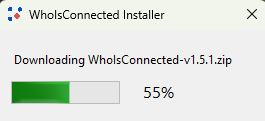
The following components are prepared automatically:
- WhoIsConnected application files
- InstallerWhoIsConnected.exe for future updates
- HelperWhoIsConnected.exe for Windows operations requiring elevated permissions
No manual extraction or additional configuration is required.
4. Installation Complete
After installation, a desktop shortcut is created automatically.

WhoIsConnected starts automatically when installation is complete.
You can now start WhoIsConnected at any time using the desktop shortcut.
5. Keeping WhoIsConnected Updated
WhoIsConnected can check for updates directly from within the application.
Open the application menu and select:
Check for updates
Updates are installed automatically while keeping your existing installation settings.
WhoIsConnected is now installed and ready to use
You can start WhoIsConnected at any time using the desktop shortcut.
Future versions can be installed directly through the application, or by running the downloaded installer again.
The installer detects the existing installation and updates WhoIsConnected automatically.
Important
Do not remove the support files created by the installer. They are required for software updates and certain Windows operations.