Why use AI Analysis?
Application and network information can be highly technical. AI Analysis helps interpret a selected application and network connection pair, highlight unusual behavior and provide information that can guide further investigation.
AI does not decide that an application is safe or unsafe. Its result is an assessment based on the information available for the selected pair; the decision to allow, stop or block communication remains with the user.
Application + Network Context
The same remote network may be expected for one application and unusual for another. AI therefore evaluates the application together with the selected network connection rather than judging the network alone.
Using AI Analysis
| User Action | Result |
|---|---|
| Press AI Button | Enables AI analysis mode. |
| Hover over Network name | The network name changes to blue, indicating that analysis is available. |
| Click blue Network name | The network name changes to green and the analysis request is sent. |
| AI completes analysis | The result is displayed in the Information / Actions panel. |
Understanding the AI Behavior Score
AI Analysis assigns a Behavior Score from 0 to 100. A higher score means the observed behavior appears less typical. It does not automatically mean the application or connection is unsafe.
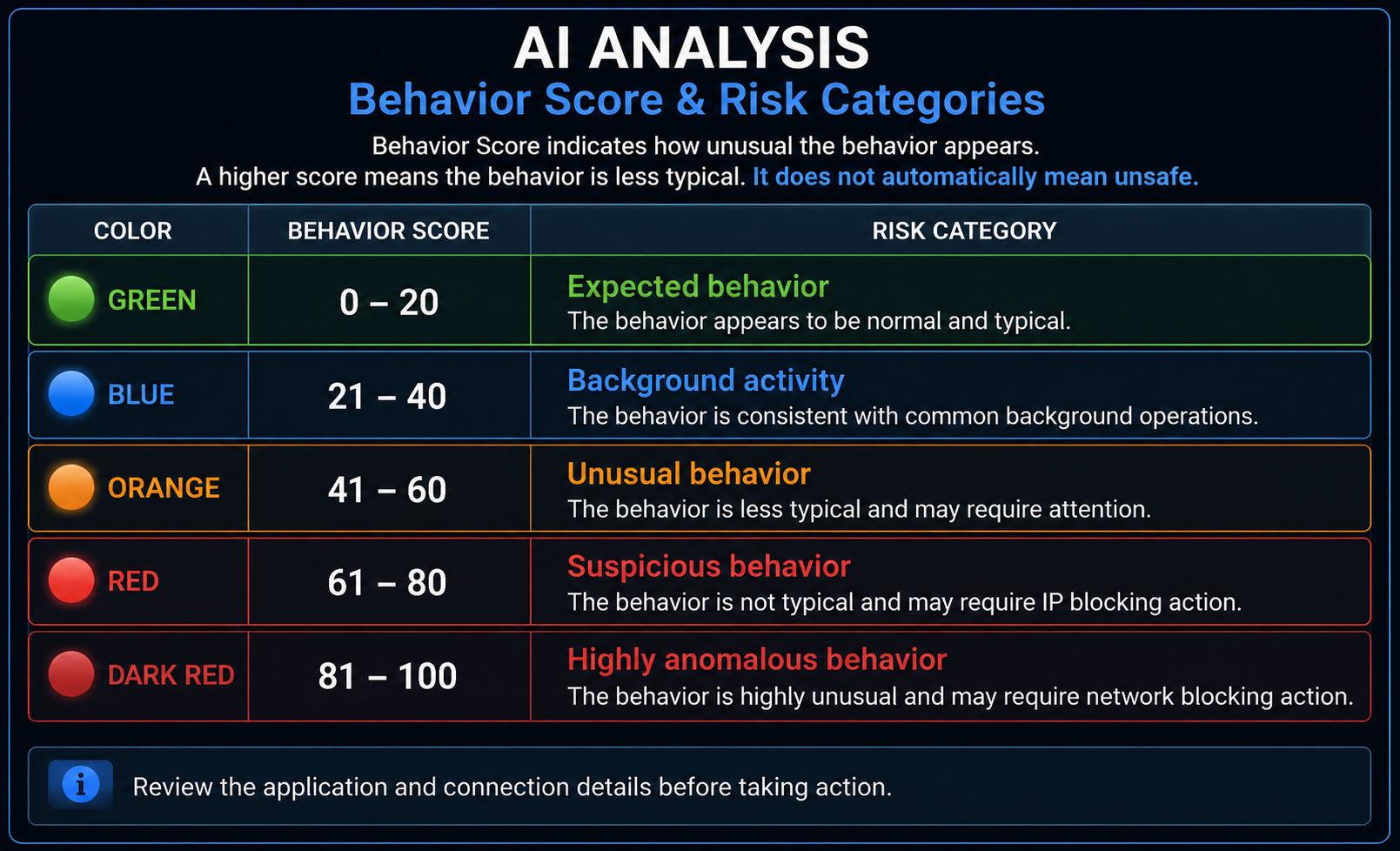
| Color | Score | Risk category |
|---|---|---|
| Green | 0–20 | Expected behavior |
| Blue | 21–40 | Background activity |
| Orange | 41–60 | Unusual behavior |
| Red | 61–80 | Suspicious behavior |
| Dark Red | 81–100 | Highly anomalous behavior |
Use the score, color and explanation as investigation aids. Review the application and connection details before taking action.
AI Result Information
| Result | Description |
|---|---|
| Behavior Score | 0–100 indication of how unusual the observed behavior appears. |
| Risk Category | Expected, Background, Unusual, Suspicious or Highly Anomalous. |
| Summary | Short explanation of the assessment. |
| Main Reasons | Factors influencing the assessment. |
| Recommended Action | Suggested action to consider in the context of the analysis. |
| Blocking Impact | Information about communication that could be affected by blocking. |
AI Scope and Limitations
AI Analysis applies to the selected application and network connection pair and the information available for it. It does not analyze every application, previous session, other computer or complete network environment.
A high score is a reason for closer investigation, not proof of malicious activity. Likewise, a low score is not a guarantee that activity is safe.